



Social Media · Connect
Link a channel once. See exactly what it can do.
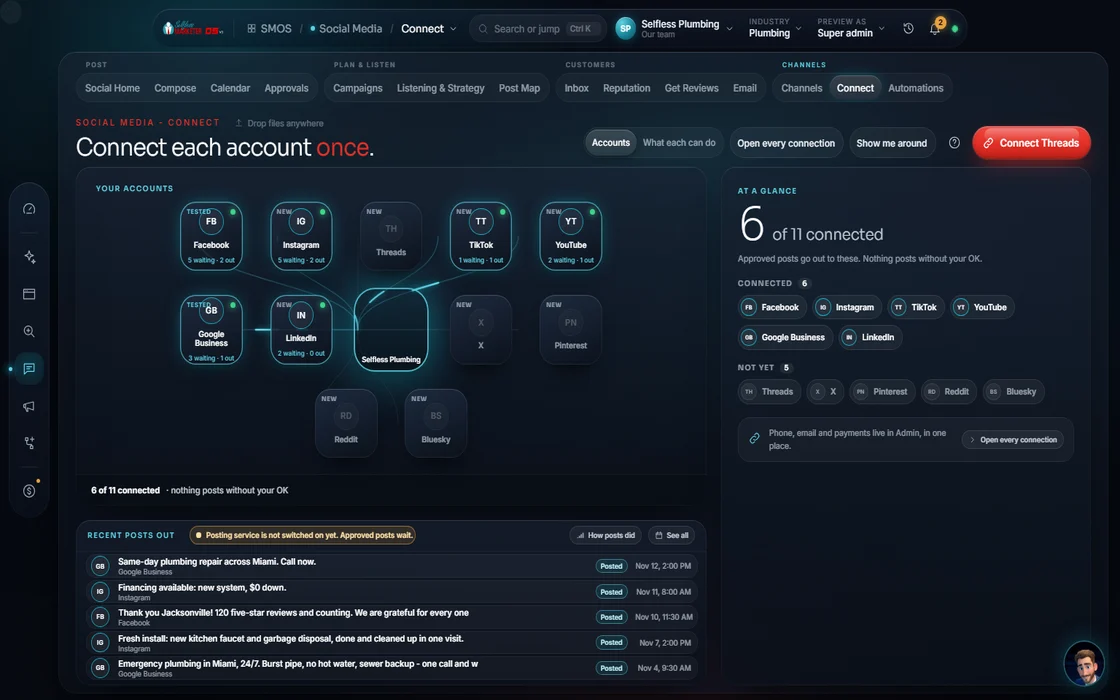
The channel wall shows all channels and their honest connect state. Link one by secure sign-in and it lights up for publishing, comments and messages, only where that network allows.
 demo business
What it is
Where your posts get permission to go out
Nothing posts to a network until you connect it. That's a rule, not a setting. The channel wall is where you connect and see each channel's truth: connected, not connected, or a demo.
Each channel shows what it can do once linked: publish, schedule, inbox, comments and analytics. If a network can't do something, the cell is empty, never a fake check mark.
You sign in on the network's own page; we never see your password. Some networks need setup first, so the wall walks you through it. Instagram is the common one.
Watch it work
Connect a channel in 5 steps
- 01
Open the wall
All channels, grouped as Priority 1 (publish here first), Priority 2 (amplify and repurpose) and Priority 3 (long-tail, often manual).
- 02
Pick a channel You
See its automation verdict, its capabilities and the formats your posts will be shaped to.
- 03
Pass the pre-flight
For Instagram: the account is Business or Creator, linked to a Facebook Page, your Page role gives content permission, and 2-factor sign-in is on.
- 04
Sign in You
A hosted sign-in on the network's own page, under your brand. You approve access; we never touch the password.
- 05
See it light up
Only a real status check turns a channel green. That network, and only that one, now publishes through the Approvals gate.
Everything included
What Connect includes
The wall
- All channels with honest status
- Priority 1, 2 and 3 tiers
- Automation verdict per channel: auto, semi or manual
- Demo connects labeled “demo”
Connecting
- Hosted sign-in, never your password
- Under your brand, not ours
- Instagram Business pre-flight
- Page role check
- 2-factor reminder
Capabilities
- Publish
- Schedule
- Inbox
- Comments
- Analytics
Hand-offs
- Send a channel to the Composer
- Send a channel to Approvals
- Hooks and formats the Composer shapes to
The rules it follows
- Hand off: Sends a channel to the Composer or Approvals with its formats attached, so drafts are shaped right from the start.
Who runs it
YOUR TEAM with the OS, or OUR TEAM for you.
- Sign in to each account (only you can grant access)
- Fix the setup the pre-flight flags
- Choose which channels matter to you
- Runs the pre-flight checks
- Shows the honest status of all channels
- Routes each connected channel through the gate
- Walks you through every connection on your onboarding call
- Sets up the Business accounts and Page links with you
- Keeps the hand-posted channels running
Live posting runs only to networks you connect; many are compose-and-remind. For Facebook and Instagram, we prep and you publish; we never auto-post to Meta. Facebook reviews can't be pulled (Meta retired that door).
On the way
Coming soon
These are planned and are not in the software yet. We list them so you know what is next.
See which networks are working and which need a fix.
Coming soon: V2Keep going
Related pages
Try the OS
Our free trial is starting soon.
The same tools we use for our done-for-you clients. Our 7-day free trial is starting soon. Until then, book a call and a real person walks you through the OS. $997 a month, first month $497. No contracts.

YOUR TEAM runs it with the OS, or OUR TEAM runs it for you with Done-For-You. Not sure? Which one fits me?